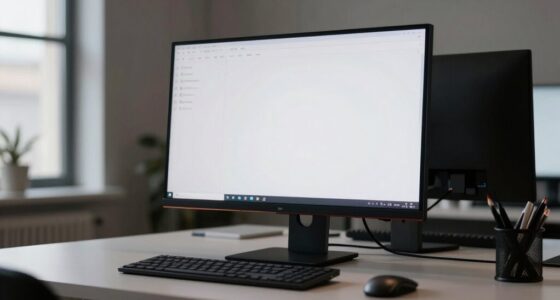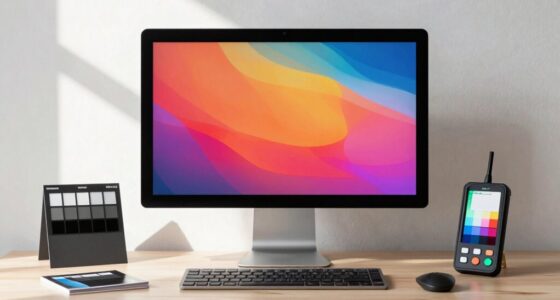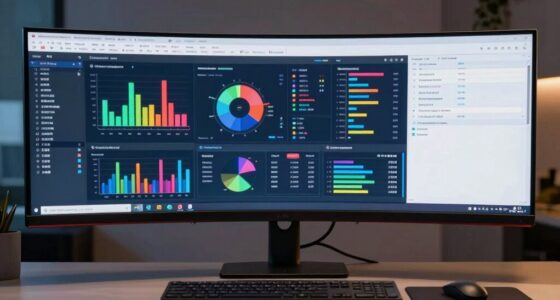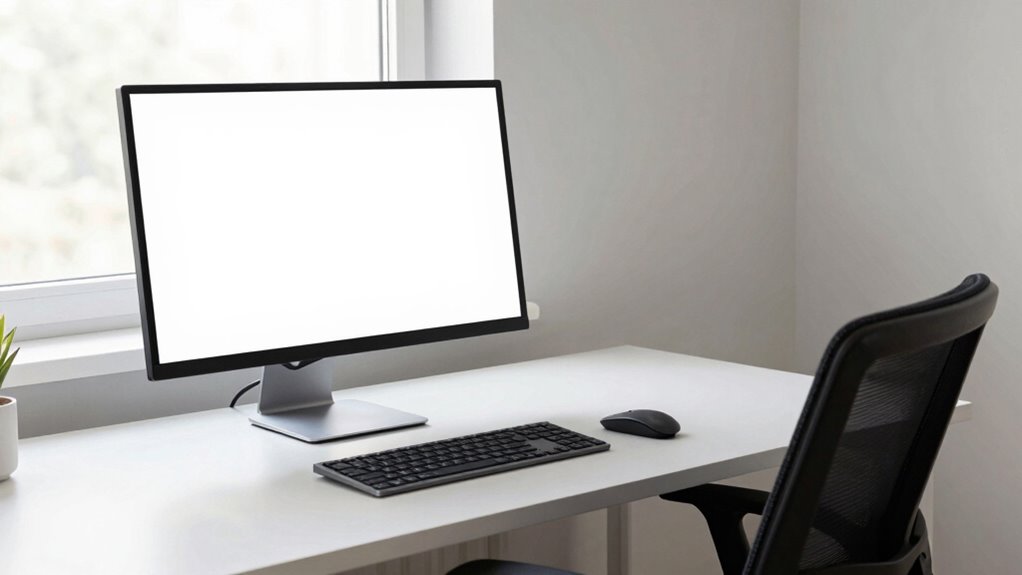
To improve your posture while handling analytics, writing, or review work, position your monitor at eye level using adjustable stands or arms. Keep it about an arm’s length away, with the top just below your eye line to avoid craning or slackening. Proper calibration of brightness and contrast reduces eye strain. Maintaining this setup encourages an upright posture, boosts comfort, and enhances focus. If you want practical tips to optimize your workspace, keep exploring these strategies.
Key Takeaways
- Position the monitor at eye level to prevent neck strain during prolonged analytics, writing, or review tasks.
- Keep the monitor about an arm’s length away for comfortable viewing and reduced eye fatigue.
- Use ergonomic accessories like adjustable stands or arms to fine-tune height and tilt for optimal posture.
- Calibrate display settings to reduce eye fatigue and ensure accurate color and contrast for detailed work.
- Maintain a neutral head and neck position to support long-term posture health during extended work sessions.
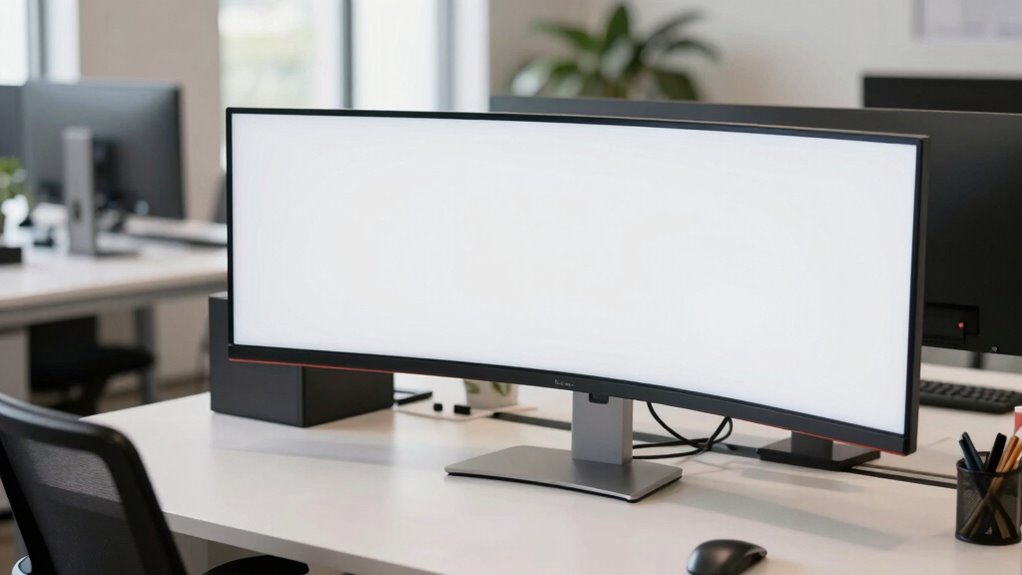
Are you aware of how your monitor’s position affects your posture? The way you set up your screen can greatly impact your comfort and long-term health, especially if you spend hours analyzing data, writing, or reviewing documents. The key lies in proper monitor positioning, which includes not only adjusting the height and distance but also ensuring your display is optimized with ergonomic accessories and proper calibration. When your monitor is set up correctly, you reduce strain on your neck, shoulders, and eyes, making your work more comfortable and efficient. Proper monitor calibration is essential to ensure that the colors and details are accurate, reducing eye fatigue and improving visual clarity. Start by considering ergonomic accessories like adjustable monitor stands or arms. These tools allow you to fine-tune your monitor’s height, tilt, and angle, ensuring that your screen is at eye level. When your monitor is too low or too high, you tend to craning your neck or slouching, which leads to poor posture and discomfort over time. An adjustable stand helps you maintain a neutral head and neck position, preventing unnecessary tension. Additionally, ergonomic accessories can help you position multiple screens consistently if you’re working with dual monitors, maintaining alignment and reducing eye and neck strain. It’s also helpful to be aware of the ergonomic principles that guide optimal workspace setup, ensuring you create a sustainable and comfortable environment. Being mindful of workstation ergonomics can significantly improve your overall comfort and productivity. Monitor calibration is equally important and often overlooked. It involves adjusting the display settings—such as brightness, contrast, and color accuracy—to match your environment and reduce eye fatigue. When your monitor is improperly calibrated, your eyes work harder to interpret the visuals, leading to fatigue and headaches. Proper calibration also ensures that colors and details are rendered accurately, which is especially crucial for review work or tasks requiring precise visual analysis. Many monitors come with built-in calibration tools, or you can use calibration hardware and software to achieve the best settings. Positioning your monitor correctly isn’t just about comfort; it’s about creating a visual workspace that promotes productivity and minimizes strain. Keep your monitor about an arm’s length away, with the top of the screen roughly at or slightly below eye level. This setup encourages you to sit upright and look straight ahead, rather than tilting or turning your head. Regularly checking and adjusting your monitor’s position with ergonomic accessories ensures that your setup remains ideal as your work habits evolve. Remember, a well-positioned monitor complemented by proper calibration can make your work hours less taxing, helping you focus better and maintain good posture for years to come.
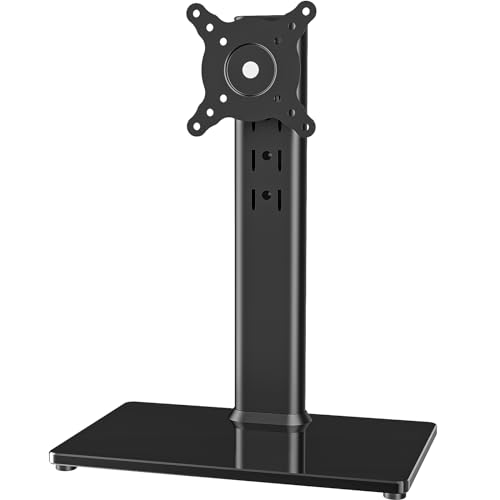
Single LCD Computer Monitor Free-Standing Desk Stand Mount Riser for 13 inch to 32 inch screen with Swivel, Height Adjustable, Rotation, Vesa Base Stand Holds One (1) Screen up to 77Lbs(HT05B-001))
- Compatibility: Fits 13-32 inch screens with VESA mounts
- Cable Management: Includes cord organization system
- Ergonomic Design: Elevates monitor for better posture
As an affiliate, we earn on qualifying purchases.
As an affiliate, we earn on qualifying purchases.
Frequently Asked Questions
How Often Should I Adjust My Monitor Position During Work?
You should adjust your monitor position whenever you notice discomfort or after changing your workspace setup. Aim to keep your monitor at eye level to maintain good monitor height and reduce neck strain. Your viewing distance should be about arm’s length, so regularly check and tweak it as needed. Frequent adjustments help prevent fatigue, ensuring your monitor stays at a suitable position for comfort and productivity throughout your workday.
What Accessories Can Improve Monitor Ergonomics?
Think of your workspace as a symphony, where every accessory plays a essential part. A sturdy monitor stand lifts your screen to eye level, reducing neck strain, while ergonomic accessories like keyboard and mouse pads promote natural wrist angles. These tools work together like a well-tuned orchestra, ensuring your posture stays balanced and comfortable throughout your workday. Investing in these accessories transforms your setup into a harmonious, health-conscious environment.
Does Monitor Size Affect Posture and Comfort?
Yes, monitor size affects your posture and comfort. Larger monitors can reduce eye strain by allowing you to see more content without excessive scrolling, improving monitor ergonomics and visual comfort. However, if the monitor is too big for your desk or seating distance, it may cause you to lean forward or strain your neck. Choose a size that fits your workspace and allows you to maintain proper posture, ensuring overall comfort.
How Can I Reduce Eye Strain From Monitor Placement?
To reduce eye strain from monitor placement, start by adjusting your screen brightness to match ambient lighting, preventing glare. Take regular breaks to perform eye exercises, like blinking frequently or focusing on distant objects. Position your monitor about an arm’s length away with the top edge at or just below eye level, ensuring comfortable viewing angles. These steps help lessen fatigue and keep your eyes comfortable during long work sessions.
Are There Specific Monitor Positions for Different Work Tasks?
For different work tasks, you should position your monitor like a superhero’s sidekick—perfectly tailored! Keep the monitor height at or just below eye level, and adjust the screen angle so it’s slightly tilted upward. For analytics or detailed reviews, a straight-on, slightly lower position works best. For writing, tilt the screen comfortably to reduce glare. Proper positioning minimizes eye strain and boosts your productivity!

HUANUO FlowLift™ Pro Monitor Arm for 13–32" Screens, MechaSpring Monitor Mount, Fully-Adjustable Monitor Stand with Tilt/Swivel/Rotation, Tool-Free VESA Mount, C-Clamp/Grommet Base, Max Load 19.8 lbs
- Monitor Size Compatibility: Fits 13-32 inch screens
- Weight Capacity: Supports up to 19.8 lbs
- VESA Compatibility: Supports 75×75mm and 100×100mm
As an affiliate, we earn on qualifying purchases.
As an affiliate, we earn on qualifying purchases.
Conclusion
So, next time you’re hunching over your screen, remember that the perfect monitor setup isn’t just about clarity—it’s about your health. Ironically, all those hours spent adjusting your posture could be avoided with a simple tweak. It’s almost humorous how a small change in monitor positioning can save you from endless aches and pains. So, don’t wait until you’re forced to sit up straight by discomfort—fix your setup now and keep your posture in check!
As an affiliate, we earn on qualifying purchases.

ErGear Dual Monitor Stand, Heavy Duty Adjustable Monitor Desk Mount for 2 Screens up to 32 Inches, Fully Adjustable Height, Tilt, Swivel, Rotate, Supports 17.6 lbs per Monitor Arm, Easy Installation
- Monitor Size Compatibility: 13 to 32 inches, VESA 75×75 or 100×100 mm
- Weight Capacity: Supports monitors up to 17.6 lbs each
- Large Adjustable Arms: 31.22-inch span with 16-inch high bar
As an affiliate, we earn on qualifying purchases.
As an affiliate, we earn on qualifying purchases.