
To guarantee a clearer, more reliable BYOD meeting room, focus on creating a strong wireless setup with dual-band routers and plenty of access points to prevent congestion. Support a wide range of devices with versatile connection options like HDMI, USB-C, and wireless streaming. Prioritize security with encryption and regular updates, and stay ahead by maintaining and upgrading your network hardware. Keep an eye on emerging standards to future-proof your space—discover more tips to optimize your setup as you go.
Key Takeaways
- Install robust, dual-band Wi-Fi with comprehensive access point coverage to ensure reliable, high-speed wireless connectivity for all devices.
- Support diverse device types and operating systems with multiple connection options like HDMI, USB-C, and wireless protocols.
- Use universal docking stations and regularly test connection setups to minimize technical issues during meetings.
- Implement strong security measures, including encryption and access controls, to safeguard sensitive information.
- Regularly update and maintain hardware and software to future-proof the room’s technology and ensure consistent performance.
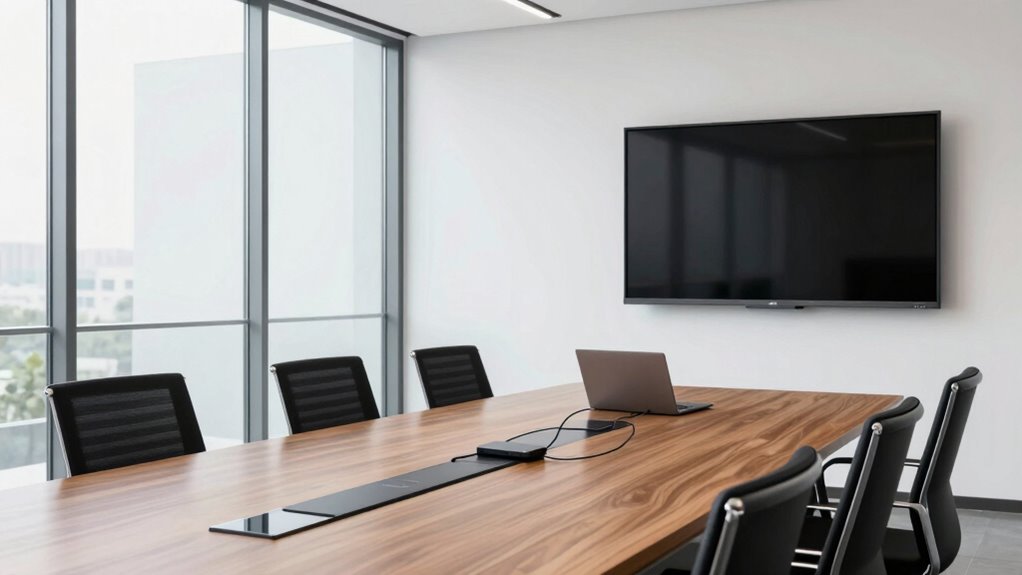
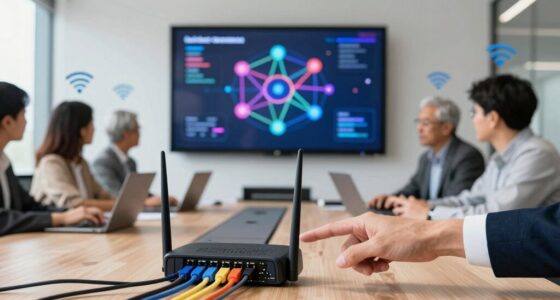
Setting up a BYOD (Bring Your Own Device) meeting room can streamline collaboration and boost productivity. When you enable team members to connect their personal devices seamlessly, meetings become more dynamic and efficient. To make this happen, you need to focus on establishing reliable wireless connectivity and guaranteeing device compatibility. Wireless connectivity is the backbone of a successful BYOD environment. Without a stable, high-speed wireless network, participants will face interruptions, lag, or disconnections that kill meeting flow. Prioritize installing a robust Wi-Fi infrastructure, with access points that cover the entire room without dead zones. Use dual-band routers that support both 2.4 GHz and 5 GHz frequencies to handle multiple devices simultaneously. This setup helps prevent network congestion and keeps everyone connected smoothly.
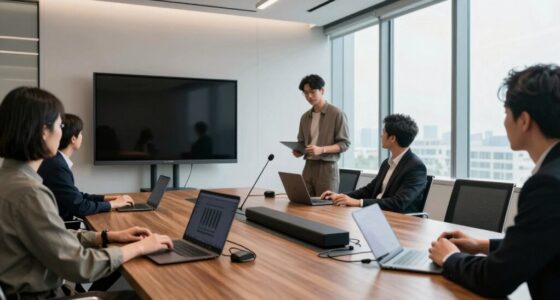
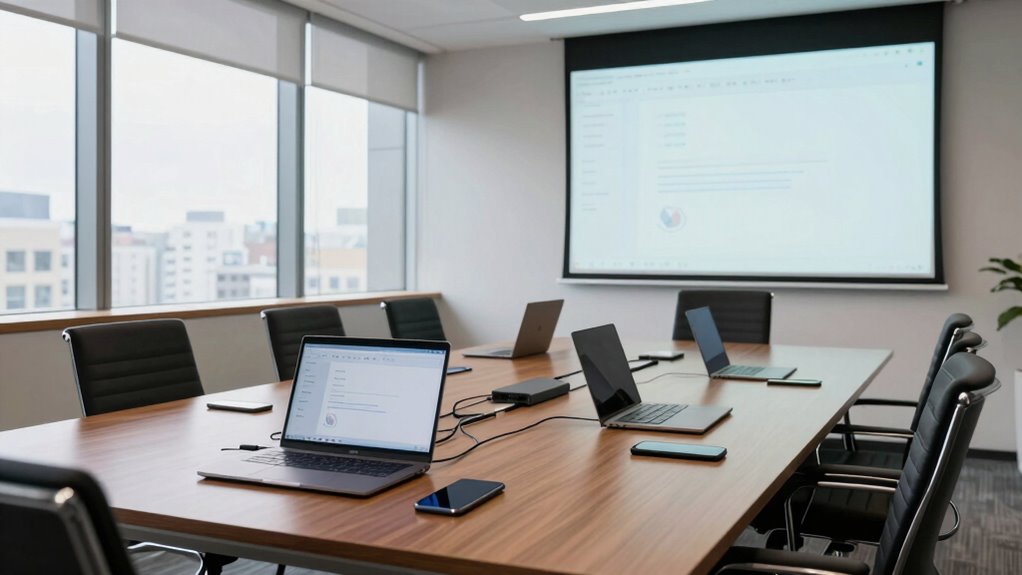
Device compatibility is equally important. Your meeting room technology must support a wide range of devices—smartphones, tablets, laptops, and even newer wearables—so all team members can participate without frustration. Make sure your AV equipment, such as projectors and displays, offers multiple connection options, like HDMI, USB-C, and wireless streaming protocols like Miracast or AirPlay. Offering versatile connection methods ensures you accommodate various device types and operating systems, whether users have Windows, macOS, Android, or iOS devices. Additionally, invest in universal docking stations or collaboration tools that simplify connection processes. These devices can quickly bridge the gap between personal tech and room systems, reducing setup time and technical hiccups. Ensuring wireless device compatibility is also crucial for a smooth experience, especially with the variety of new gadgets entering the market. Incorporate network security strategies such as encryption and access controls to prevent unauthorized access and safeguard sensitive information during meetings. Regularly testing your setup before each meeting guarantees wireless connectivity remains strong and devices connect without issues. Also, staying informed about emerging device standards can help future-proof your meeting room technology and maintain compatibility with the latest gadgets. Regular maintenance of your network hardware and software updates keeps your system resilient against disruptions.

TP-Link AX1800 WiFi 6 Router (Archer AX21 V5) – Dual Band Wireless Internet, Gigabit, Easy Mesh, Works with Alexa – A Certified for Humans Device, Free Expert Support
DUAL-BAND WIFI 6 ROUTER: Wi-Fi 6(802.11ax) technology achieves faster speeds, greater capacity and reduced network congestion compared to…
As an affiliate, we earn on qualifying purchases.
As an affiliate, we earn on qualifying purchases.
Frequently Asked Questions
How Do I Troubleshoot Connectivity Issues During Meetings?
To troubleshoot connectivity issues during meetings, start by checking for wireless interference from nearby devices or networks that might disrupt the connection. Make sure all your software, including meeting apps and device firmware, is up to date, as updates often fix bugs and improve stability. Restart your devices and router if problems persist. These steps help maintain a reliable connection, reducing interruptions and ensuring smoother meetings.
What Security Measures Are Recommended for BYOD Setups?
Your BYOD setup is the backbone of secure meetings, so don’t leave it vulnerable! You should implement strong Wi-Fi security protocols, like WPA3 encryption, to guard against hackers. Enable device encryption on all connected devices to protect sensitive data. Regularly update firmware and security patches, and consider network segmentation to isolate guest devices. These measures create an impenetrable fortress, ensuring your meetings stay private and secure.
How Can I Ensure Compatibility With Various Device Brands?
To make certain of device compatibility and smooth brand integration, you should choose universal tools like wireless display adapters that support multiple operating systems and device types. Test various brands beforehand, and keep firmware updated to minimize issues. Opt for platforms that are compatible across multiple devices, and provide clear instructions for users. This proactive approach guarantees seamless connectivity, reduces frustrations, and maximizes your meeting room’s effectiveness regardless of device brand.
What Is the Ideal Hardware Setup for BYOD Rooms?
You should equip your BYOD room with wireless projection capabilities for seamless device connections. Use a reliable HDMI or wireless display adapter compatible with various devices. Incorporate device calibration tools to guarantee accurate screen mirroring, regardless of device brand. Additionally, select user-friendly hardware that simplifies setup and encourages adoption. This setup minimizes technical issues, enhances collaboration, and guarantees a smooth, reliable meeting experience for everyone involved.
How Do I Train Staff to Use BYOD Technology Effectively?
Did you know 75% of users feel more confident with technology after proper training? To guarantee staff use BYOD technology effectively, you should focus on staff training that emphasizes user-friendly interfaces. Offer hands-on demos and quick reference guides, and encourage ongoing support. Clear instructions and practice sessions help staff feel comfortable, reducing frustration and making meetings run smoother. This approach boosts confidence and maximizes the benefits of your BYOD setup.

USB C Docking Station Dual Monitor Adapter for Dell HP, Laptop Docking Station 3 Monitors Quad Display USB C Hub Dongle to 4K HDMI+DP+VGA,3 USB2.0,100W PD,8 in 1 Thunderbolt Dock for Lenovo,Surface
USB C Docking Station 8 IN 1: HoDo USB C Docking Station with Dual HDMI 4K (1*60HZ &…
As an affiliate, we earn on qualifying purchases.
As an affiliate, we earn on qualifying purchases.
Conclusion
By following these BYOD meeting room setup tips, you’ll create a smoother, more reliable experience for everyone. It’s a common belief that technology always works seamlessly—yet, proper preparation proves this isn’t always the case. When you invest a little effort upfront, you reduce frustrations and foster better collaboration. Ultimately, a well-setup room confirms that technology serves your team, not the other way around. Embrace these practices, and enjoy more productive, stress-free meetings.

Wireless HDMI Transmitter and Receiver 4K Kit, Full HD 4K Wireless Presentation Equipment HDMI Adapter, Plug and Play Streaming Media. Laptop, Dongle, PC, Smart Phone to HDTV/Projector 165FT/50M
【SCREEN MIRRORING VIDEO/AUDIO to BIG SCREEN】 Wireless hmdi transmitter and receiver supports video resolution up to HD@60Hz resolutions…
As an affiliate, we earn on qualifying purchases.
As an affiliate, we earn on qualifying purchases.

TP-Link Omada WiFi 7 Wireless Access Point – BE5000 Dual Band, 2.5G Port, PoE+ or DC Powered, Adapter Included, 5yr Warranty, Captive Portal, Mesh, WPA3, Roaming, Business WiFi Experience (EAP720)
𝐅𝐑𝐄𝐄 𝐎𝐦𝐚𝐝𝐚 𝐄𝐬𝐬𝐞𝐧𝐭𝐢𝐚𝐥 𝐏𝐥𝐚𝐭𝐟𝐨𝐫𝐦 𝐂𝐞𝐧𝐭𝐫𝐚𝐥𝐢𝐳𝐞𝐝 𝐑𝐞𝐦𝐨𝐭𝐞 𝐌𝐚𝐧𝐚𝐠𝐞𝐦𝐞𝐧𝐭: Unlock numerous advanced features by integrating with Omada Cloud Management Platform,…
As an affiliate, we earn on qualifying purchases.
As an affiliate, we earn on qualifying purchases.