
📊 Full opportunity report: Undervolting Your GPU for Local Inference: Lower Heat, Same Tokens/sec on ThorstenMeyerAI.com — validation score, market gap, and execution plan.

Get business pricing on office and shipping supplies
- Business-only prices and quantity discounts
- Tax-exempt purchasing
- Multiple users, one account, clear invoices
TL;DR
Undervolting GPUs through power limiting can significantly lower heat and noise during AI inference without sacrificing tokens/sec. This approach is simple, reversible, and highly effective for inference workloads.
Recent tests confirm that undervolting GPUs via power limiting during AI inference workloads can substantially reduce heat and noise with minimal impact on tokens per second, making it a practical optimization for AI workstations.
Multiple developers and tests, including data from a developer measuring RTX 4090 performance, demonstrate that lowering the GPU power limit from 100% to around 60-70% reduces power consumption by up to 40%, decreases temperatures by several degrees Celsius, and significantly cuts noise levels. Crucially, this reduction results in only a 5-10% decrease in inference speed, which is often imperceptible for many applications.
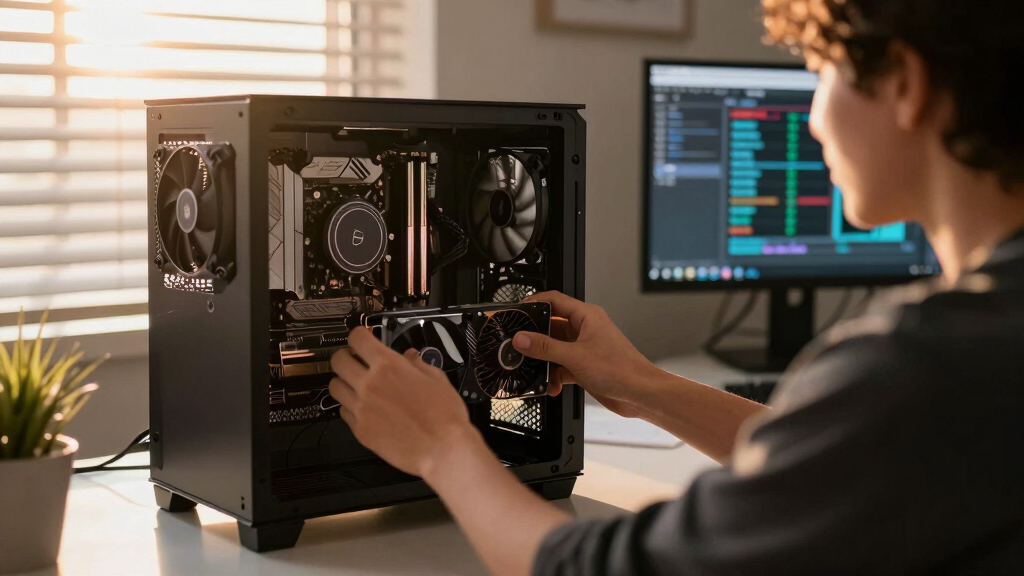
The primary method involves adjusting the ‘power limit’ slider in tools like MSI Afterburner, which automatically manages voltage and clock adjustments to stay within the set power cap. This method is reversible, requires no stability testing, and is recommended for most users seeking immediate benefits. For more precise tuning, undervolting the GPU’s voltage-frequency curve directly can offer further efficiency gains but involves more complex testing and risk.
Data from tests on high-end GPUs such as the RTX 4090 and RTX 5090 show that optimal power caps lie between 50-70%, where the balance of heat, noise, and performance is best. For example, capping an RTX 4090 at 70% power preserves over 93% of its inference speed while reducing power draw from 390W to 300W.
Undervolt for inference:
lower heat, same tokens/sec.
Local inference is memory-bound — the GPU core spends much of its time waiting on VRAM, not maxing out compute. So when you cap its power, heat falls fast while throughput barely moves. Drag the slider in Part 2 to see the trade for yourself.
(the real limit)
(often waiting)
you pay for in heat
| Power limit | Power draw | Temp | Speed kept | Efficiency |
|---|---|---|---|---|
| 100% (stock) | 390 W | 72°C | 100% | baseline |
| 80% | 330 W | 70°C | 98.6% | +17% |
| 70%recommended | 300 W | 67°C | 93.4% | +22% |
| 60% | 260 W | 62°C | 91.5% | +37% |
| 55%peak efficiency | 240 W | 60°C | 89.2% | +45% |
| 50% | 220 W | 58°C | 82.6% | +46% |
| 40% (too far) | 180 W | 52°C | 61.3% | falls off |
- One slider, 100% → 70%. The card reduces voltage and clocks on its own.
- Can’t damage anything — you’re restricting the card, not pushing it.
- No stability testing needed.
- Captures most of the available benefit.
- Edit the voltage-frequency curve — hold a clock at lower voltage.
- Target around 0.9–0.95V to start; better chips go lower.
- Keeps more performance for the same heat cut.
- Test under your real workload — a curve stable for 10 min can fail on hour 3.
MSI Afterburner (works on any brand). Headless Linux: nvidia-smi or LACT.sudo nvidia-smi -pl 300.Impact of Undervolting on AI Inference Efficiency
This approach allows AI practitioners and data scientists to operate their hardware more efficiently, reducing energy costs, lowering system temperatures, and decreasing noise pollution. It extends hardware lifespan and improves comfort in office environments, especially for systems running continuously. The minimal performance trade-off makes it a highly attractive optimization for inference workloads, which are memory-bandwidth-bound and less compute-sensitive.
As an affiliate, we earn on qualifying purchases.
GPU Factory Settings and Inference Workloads
Modern GPUs, including NVIDIA's flagship models, ship with conservative factory voltage curves to ensure stability across all units. This results in higher-than-necessary heat output and power consumption, especially during inference tasks where the GPU’s compute cores are often not the bottleneck. Inference workloads are typically memory bandwidth-bound, meaning the GPU spends much of its time waiting for data rather than maxing out its compute capacity. Consequently, reducing core voltage and clock speed has minimal impact on inference speed but can significantly cut heat and noise.
Previous guides focused on gaming, where lowering performance can cause noticeable frame drops. In contrast, inference workloads tolerate aggressive undervolting because the core is rarely the limiting factor, making power limiting a simple, effective optimization.
"Most inference workloads are memory-bound, so lowering the GPU’s power limit doesn’t significantly affect tokens/sec but greatly reduces heat and noise."
— Thorsten Meyer, AI tuning expert
MSI Afterburner power limit slider
As an affiliate, we earn on qualifying purchases.
As an affiliate, we earn on qualifying purchases.
Remaining Questions on Long-Term Stability
While short-term tests show minimal performance impact, the long-term stability of aggressive undervolting and power limiting, especially under continuous heavy inference workloads, remains less documented. Variations across different GPU models and manufacturing batches could influence results. Additionally, the effects of repeated adjustments over time on hardware longevity are still being studied.
As an affiliate, we earn on qualifying purchases.
Next Steps for GPU Optimization in AI Workstations
Users are encouraged to experiment with power limiting settings within the recommended range (50-70%) and monitor system stability and performance. Further research and reporting on long-term effects and undervolting techniques will help refine best practices. Manufacturers may also update firmware or tools to facilitate safer, more effective undervolting options.
As an affiliate, we earn on qualifying purchases.
Key Questions
Can undervolting damage my GPU?
No, undervolting via power limiting is reversible, safe, and widely used. It reduces heat and noise without risking hardware damage when done within recommended settings.
Will undervolting affect my inference speed?
In most cases, the speed loss is minimal—around 5-10%—because inference workloads are memory-bound and don’t rely heavily on maximum core performance.
How do I start undervolting my GPU for inference?
Begin with power limiting tools like MSI Afterburner, set the power limit to around 60-70%, and monitor stability and performance. For more precise tuning, consider undervolting the voltage curve directly, but only after gaining experience.
Is this method effective for all GPUs?
Most modern NVIDIA GPUs respond well to power limiting for inference tasks, but results may vary depending on specific models and manufacturing differences. Testing is recommended.
Source: ThorstenMeyerAI.com
Halloween Picks
halloween
As an affiliate, we earn on qualifying purchases.