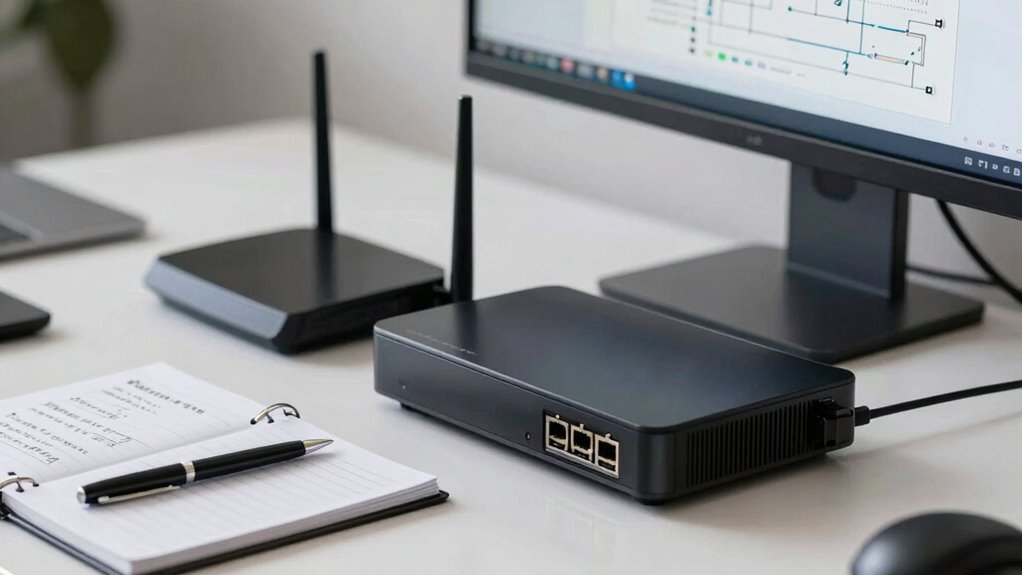

To prevent disruptions, you should develop a solid backup plan for your router and modem. Identify reliable replacement devices, keep spare units ready, and guarantee they have the latest firmware installed for security and performance. Automate updates and document settings for quick restoration if needed. Regularly monitor your network security and keep records of passwords and configurations. Continuing further will help you discover strategies to keep your internet steady and secure at all times.

Get business pricing on office and shipping supplies
- Business-only prices and quantity discounts
- Tax-exempt purchasing
- Multiple users, one account, clear invoices
Key Takeaways
- Regularly identify and keep spare routers and modems with current firmware for quick replacement during failures.
- Automate firmware updates and document configurations to ensure seamless fallback and security.
- Maintain secure records of network credentials and device settings for rapid restoration.
- Enable strong security protocols on backup devices to prevent vulnerabilities.
- Schedule routine checks and updates to minimize network disruptions and enhance reliability.
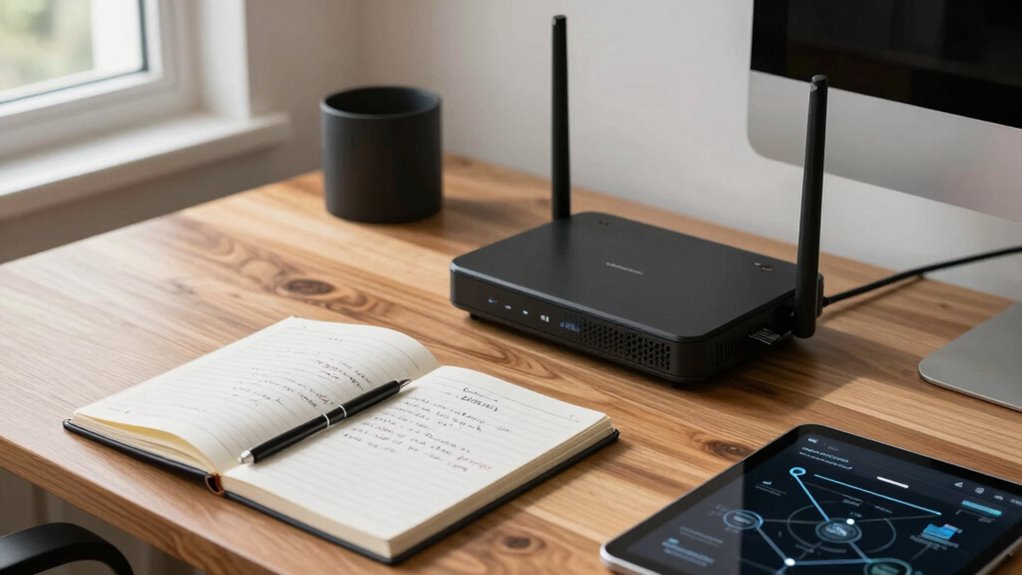
In today’s connected world, having a solid backup plan for your router and modem is essential to maintain uninterrupted internet access. When your primary devices fail or encounter issues, a backup ensures you’re not left scrambling or experiencing costly downtime. It’s not just about convenience; it’s about safeguarding your internet security and keeping your online activities safe from threats. One of the most overlooked aspects of maintaining reliable networking equipment is staying on top of firmware updates. Regularly updating your router and modem’s firmware patches security vulnerabilities, improves performance, and often introduces new features that can enhance your network’s stability. Neglecting these updates can leave your devices exposed to cyber threats, which can compromise your data and overall internet security.
Regularly update your router and modem firmware to enhance security, boost performance, and prevent cyber threats.
Creating a backup plan involves more than just having spare hardware; it requires proactive steps to ensure your network remains secure and functional. First, identify reliable replacement devices compatible with your existing setup. Keep spare routers or modems on hand, especially if you rely heavily on your internet connection for work or streaming. When your primary device shows signs of trouble—such as frequent disconnections or slow speeds—you can quickly swap in the backup to minimize disruption. Before doing so, ensure your backup devices have the latest firmware updates installed. This way, they’re equipped with the latest security patches and performance improvements, reducing the risk of vulnerabilities.
You should also develop a routine for firmware updates for all your networking equipment. This can be automated through device settings or scheduled manually once a month. Keeping firmware current not only enhances security but also ensures compatibility with evolving internet standards and devices. It’s wise to document your setup, including the firmware versions and configuration details, so you can swiftly replicate settings on backup devices if needed. Additionally, consider maintaining a secure record of your network passwords and configurations in case you need to restore or reconfigure your backup hardware quickly. Incorporating firmware management as part of your security strategy can significantly reduce potential attack vectors. Regular firmware updates are essential for network security, preventing exploits that could compromise your entire setup.
Beyond hardware and firmware, bolster your internet security by enabling strong encryption protocols, changing default passwords, and regularly monitoring your network for unusual activity. This layered approach ensures that, even if your primary router or modem fails, your backup hardware is ready to step in securely and efficiently. Planning ahead, staying updated, and maintaining good security habits allow you to prevent most disruptions before they happen, giving you peace of mind and a resilient internet setup.
As an affiliate, we earn on qualifying purchases.
Frequently Asked Questions
How Often Should I Test My Backup Devices?
You should test your backup devices at least quarterly to guarantee they’re functioning properly. During these tests, check firmware updates and verify that power surge protection is active. Regular testing helps you identify potential issues early, preventing disruptions. Keeping firmware current and ensuring surge protection is in place will improve device reliability, so schedule these checks regularly to maintain ideal network performance and avoid unforeseen outages.
What Is the Cost Difference Between Various Backup Options?
The cost difference between backup options varies widely. Cloud storage plans can range from free to hundreds annually, depending on capacity and features, making them affordable for most users. Battery backups, like UPS devices, typically cost between $50 to $300, depending on power capacity. Combining cloud storage with battery backup guarantees data safety during outages, but you should consider your budget and needs to choose the most cost-effective solution.
Can I Automate My Router and Modem Backups?
Yes, you can automate your router and modem backups. Use remote monitoring tools that support scheduled backups, ensuring your configurations are regularly saved without manual intervention. Additionally, keep firmware updates current, as they often improve backup processes and security. Automating backups through these methods minimizes disruptions, keeps your network stable, and makes restoring settings quick and easy if issues arise.
What Are the Signs of a Failing Backup Device?
You’ll notice signs of a failing backup device when firmware updates become difficult or fail, indicating outdated or corrupt software. Hardware compatibility issues may cause frequent disconnections or the device not recognizing new hardware components. If you experience inconsistent backups, slow performance, or error messages, it’s time to check for firmware updates and verify the device’s hardware is compatible with your network setup. Regular maintenance helps prevent unexpected failures.
How Long Can a Backup Device Reliably Store Data?
Your backup device can reliably store data for several years, depending on its quality and maintenance. Think of it as a vault that keeps precious memories safe; over time, even the strongest vault needs checking. Data encryption helps protect stored data, while ample storage capacity guarantees you don’t run out of space. Regularly update and test your backup device to prolong its effective lifespan and ensure your data stays protected.
As an affiliate, we earn on qualifying purchases.
Conclusion
By now, you see that proactive router and modem backup planning isn’t just a modern convenience but a necessity—think of it as your digital armor in a world where disruptions can strike like lightning. With a well-crafted plan, you’ll avoid the chaos of downtime and keep your network running smoothly, even when the unexpected occurs. Remember, as the ancients knew, “forewarned is forearmed.” Embrace these strategies, and your connection will stand resilient against any storm.
As an affiliate, we earn on qualifying purchases.
As an affiliate, we earn on qualifying purchases.
Halloween Picks
halloween
As an affiliate, we earn on qualifying purchases.