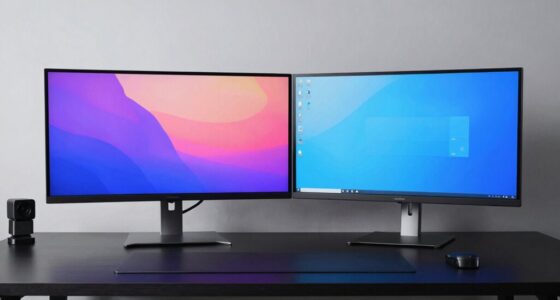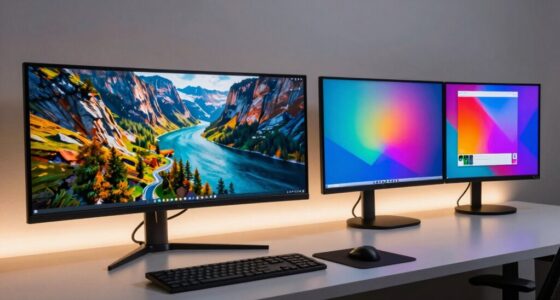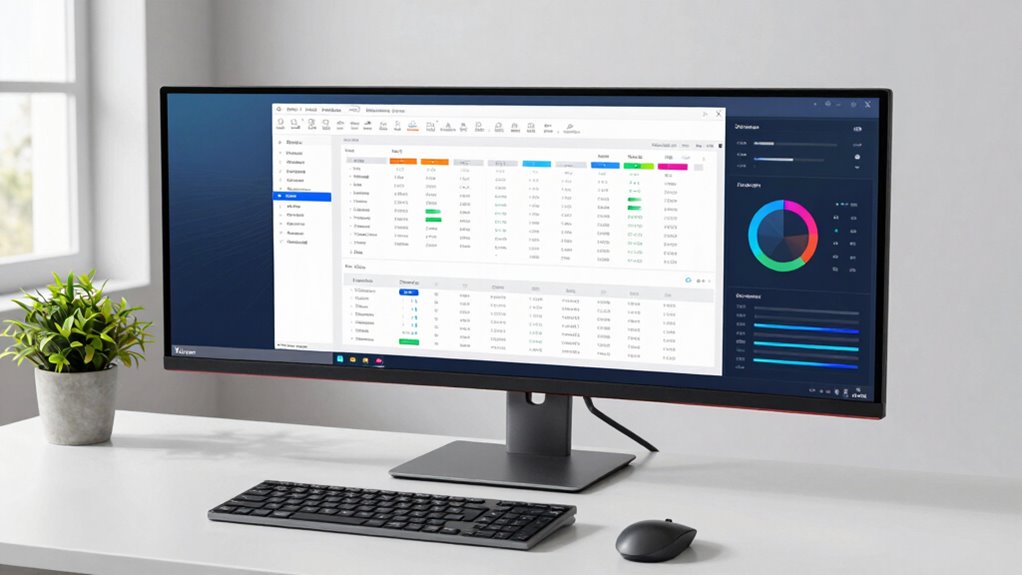

Using a 4K monitor for office work requires proper scaling, as bigger isn’t always better. If the UI elements appear tiny, you need to adjust your display scaling to find a comfortable size that reduces eye strain and guarantees clear visibility. Proper calibration and ergonomic placement also play key roles in boosting productivity and comfort. Keep these tips in mind, and you’ll discover how to make your workspace both efficient and comfortable for everyday tasks.
Key Takeaways
- Higher resolution makes UI elements tiny, requiring scaling adjustments for comfortable reading and interaction.
- Proper scaling prevents eye strain and visual discomfort caused by overly small or blurry interfaces.
- Excessive scaling can reduce workspace efficiency, negating the benefits of a 4K display.
- Balancing clarity and size through optimal scaling enhances productivity without sacrificing detail.
- Combining ergonomic monitor placement with correct scaling promotes better posture and reduces fatigue.
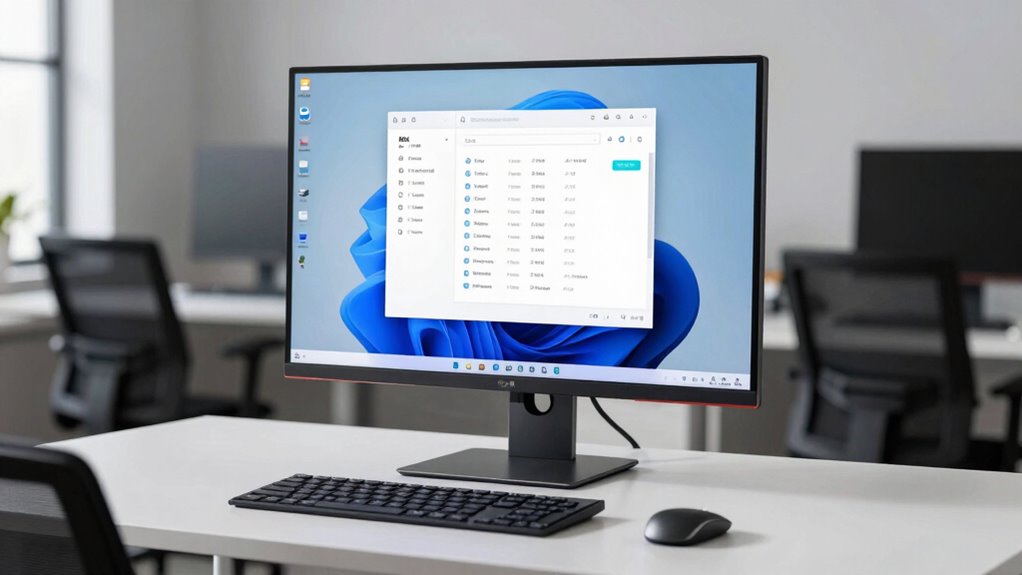
If you’re switching to a 4K monitor for office work, you might notice that some applications and interfaces appear tiny or blurry. This is because the high pixel density requires you to adjust scaling settings to make text and icons comfortably readable. This is especially true if you want to avoid visual discomfort caused by improper scaling. Without proper scaling, you could find yourself squinting at your screen or experiencing eye strain. To get the most out of your 4K display, focus on optimizing color calibration and ergonomic placement. Accurate color calibration ensures that your screen displays true-to-life colors, which is especially important if your work involves color-sensitive tasks like graphic design or data visualization. Proper calibration helps you see subtle differences clearly, reducing errors and eye fatigue. Additionally, monitor calibration can be enhanced with the right tools and techniques to ensure your display remains consistent over time. Adjusting your display’s settings for optimal clarity can significantly improve your overall viewing experience. Furthermore, understanding how pixel density impacts UI scaling can help you make better adjustments for a comfortable workspace. Considering the display size and resolution together can also influence how effectively you utilize your workspace. Ergonomic placement is equally vital. Position your monitor so that the top of the screen is at eye level, about an arm’s length away. This prevents neck and eye strain over long work hours. When your monitor is too low or too high, you may unconsciously tilt your head or squint, leading to discomfort. With a properly placed monitor, you can maintain good posture and reduce fatigue. Remember, smaller UI elements on a 4K screen can be overwhelming if not scaled correctly. Most operating systems allow you to adjust scaling settings—typically to 125% or 150%—to make text and icons more visible without sacrificing screen real estate. This adjustment makes your workspace more comfortable and efficient. Beyond scaling, you should also consider color calibration to ensure your display’s colors are accurate and consistent. Many monitors come with built-in calibration tools or can be calibrated using external hardware and software. When your colors are calibrated correctly, you won’t have to second-guess whether what’s on your screen matches real-world colors, which can save you time and reduce mistakes. Additionally, proper ergonomic placement combined with calibrated colors minimizes eye strain and enhances focus, boosting overall productivity. In essence, bigger isn’t always better if you neglect these details. Your high-resolution 4K monitor can transform your workspace, but only if you tweak its settings to match your needs. Proper scaling, color calibration, and ergonomic placement work together to create a comfortable, accurate, and efficient environment. By paying attention to these factors, you’ll find that your 4K display becomes a powerful tool—not a source of frustration or discomfort.
4K monitor display scaling adjustment
As an affiliate, we earn on qualifying purchases.
As an affiliate, we earn on qualifying purchases.
Frequently Asked Questions
How Does Scaling Affect Font Clarity on a 4k Monitor?
Scaling impacts font sharpness on a 4k monitor by adjusting how text appears, which can either improve or reduce readability. When you increase scaling, fonts may become larger, making text easier to read, but sometimes at the expense of sharpness. Proper scaling enhances readability, ensuring that fonts are clear and crisp, so you can work comfortably without straining your eyes. Finding the right balance optimizes font sharpness and overall readability.
Can Scaling Improve Multi-Window Productivity?
You might think scaling doesn’t impact multi-window productivity, but it actually can. Proper scaling makes window arrangement more seamless, reducing clutter and making it easier to access multiple applications simultaneously. This minimizes task switching time and boosts efficiency. When scaling enhances clarity and layout, you’ll find managing several windows less frustrating, ultimately improving your workflow. So, yes, scaling can profoundly support multi-window productivity by optimizing your workspace.
Is There a Recommended Scaling Setting for Extended Monitor Setups?
For extended monitor setups, a recommended scaling setting is usually between 125% and 150%, depending on your display size and resolution. You should also focus on display calibration to guarantee color accuracy and sharp text. Adjust scaling so that items are comfortably readable without straining your eyes. Proper calibration enhances visual clarity, making multi-window work more efficient and reducing eye fatigue during long hours at your desk.
How Do Different Operating Systems Handle 4k Scaling?
Different operating systems handle 4K scaling differently, impacting display calibration and color accuracy. Windows often offers adjustable scaling options, allowing you to fine-tune how content appears, but it may sometimes cause blurry text. macOS automatically manages scaling for sharp images and accurate colors, ensuring better display calibration. Linux varies depending on the distribution, but generally, it requires manual adjustments to optimize scaling and maintain color accuracy for your 4K monitor.
Will Scaling Cause Compatibility Issues With Older Software?
Scaling can cause compatibility issues, especially with legacy applications. Imagine trying to read a faded map; some details get lost. Similarly, older software might not resize correctly, making buttons tiny or text blurry. You might encounter display glitches or functionality problems, requiring you to run certain programs in compatibility mode. To avoid frustration, test critical legacy applications before fully adopting 4k scaling at your desk.
ergonomic monitor stand for office
As an affiliate, we earn on qualifying purchases.
As an affiliate, we earn on qualifying purchases.
Conclusion
Ultimately, choosing the right 4k monitor size depends on your workspace and how you work best. For example, imagine someone upgrading to a 32-inch screen but struggling with tiny text, causing eye strain. By adjusting scaling settings or opting for a slightly smaller monitor, they find a comfortable balance. Remember, bigger isn’t always better—focus on clarity and comfort to boost your productivity and reduce fatigue at your desk.
As an affiliate, we earn on qualifying purchases.
As an affiliate, we earn on qualifying purchases.