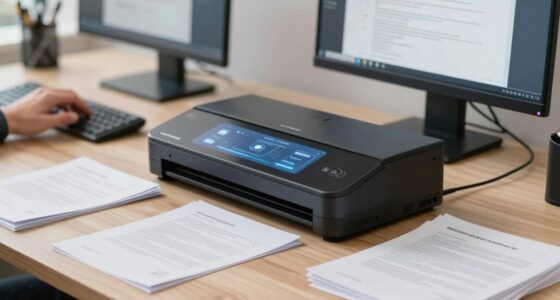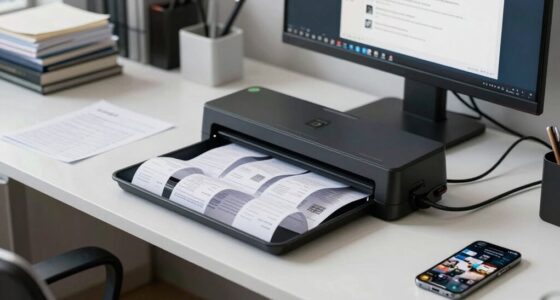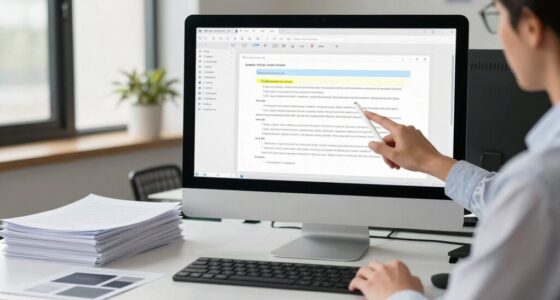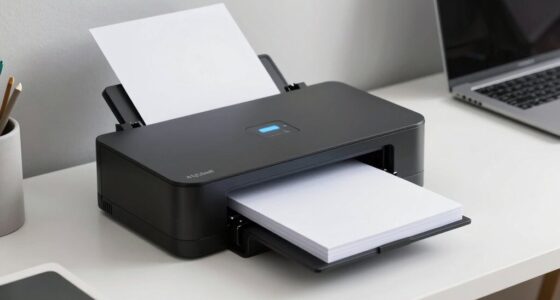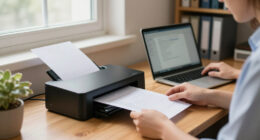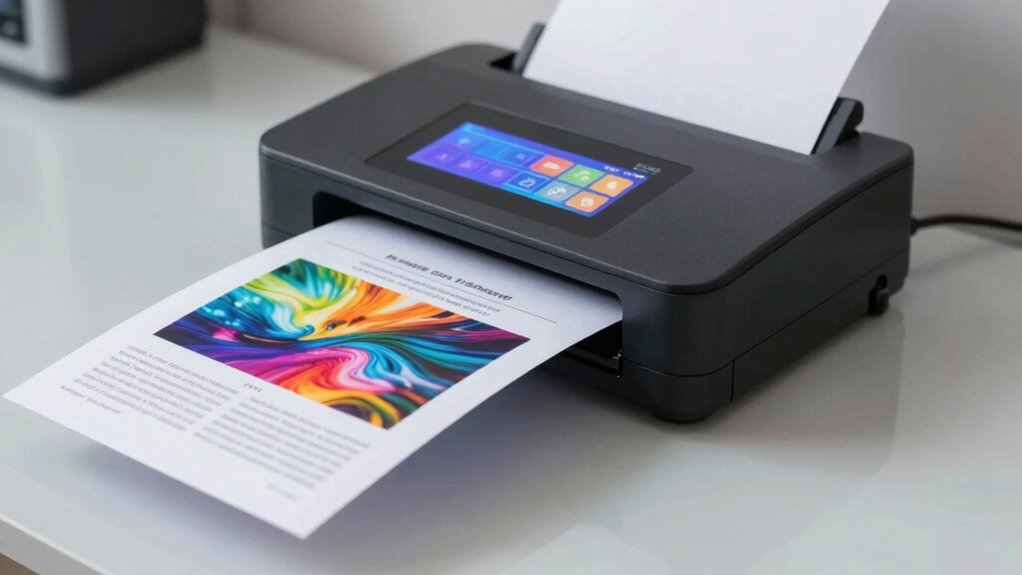

Balancing scan speed and image quality is essential to avoid missing important details or producing unusable copies. When rushing, you risk losing clarity, accurate colors, and important pages, which can impact record-keeping or legal evidence. Slowing down a bit helps maintain sharpness, color fidelity, and detect issues like skewed pages. Finding the right balance means understanding your needs and scanner capabilities—if you keep exploring, you’ll discover how to optimize both speed and quality effectively.
Key Takeaways
- Faster scanning can compromise detail, color accuracy, and cause artifacts, reducing overall image quality.
- Proper calibration and advanced algorithms help maintain quality even at higher speeds.
- Aggressive compression during rapid scans diminishes image clarity and obscures fine details.
- Balancing speed and quality requires testing and adjusting settings based on specific document needs.
- Vigilant review during fast scans ensures issues like skewed pages or poor lighting are detected and corrected.
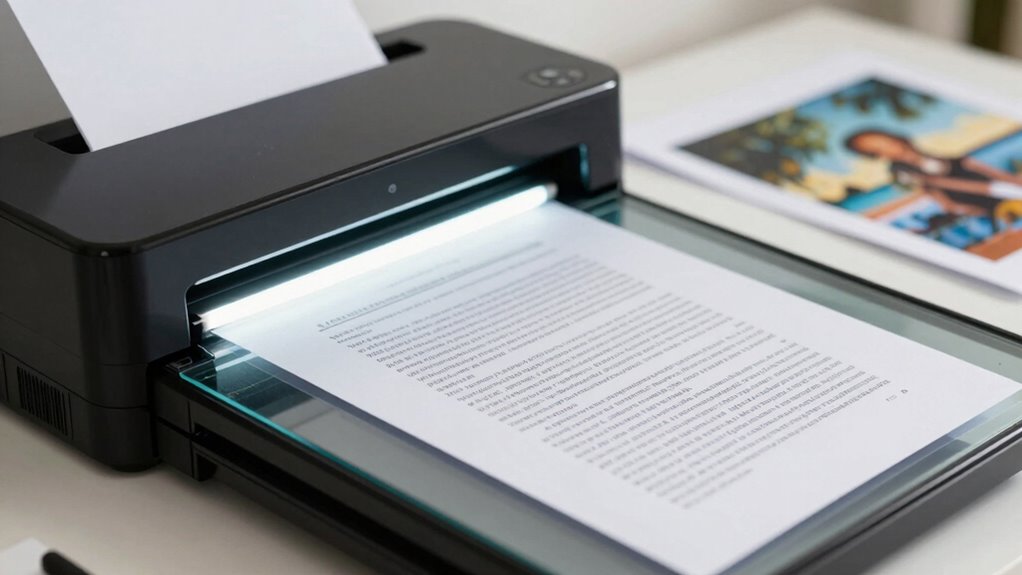
Have you ever wondered if faster document scanning compromises image quality? When you’re trying to get through a large volume of documents quickly, it’s tempting to push for higher scanning speeds. But in doing so, you might unintentionally sacrifice essential details that affect how your digital copies look and function. One key aspect to evaluate is color accuracy. If the scanner isn’t calibrated properly or if the settings prioritize speed over quality, the colors in your scanned images might appear dull, off-tone, or inconsistent with the original document. This can be especially problematic if you rely on these images for accurate record-keeping, legal evidence, or professional presentations.
File compression plays a vital role in this balancing act. When you choose faster scanning modes, many scanners automatically apply aggressive file compression to reduce the size of the digital files. While smaller files are easier to store and transmit, they often come at the expense of image clarity. Excessive compression can introduce artifacts, reduce sharpness, and obscure fine details, making the images less usable for detailed review or editing. If preserving high-quality images is a priority, you need to be cautious about the level of compression your scanner applies during rapid scans. Additionally, understanding the impact of file compression on overall image quality can help you make more informed decisions about your scanning settings. Incorporating image quality considerations into your setup can further enhance your results and prevent unnecessary sacrifices.
Aggressive file compression during fast scans can reduce clarity and obscure fine details, impacting image quality and usability.
Speed and quality are often viewed as mutually exclusive, but that doesn’t have to be the case. Modern scanners and scanning software aim to strike a better balance, allowing you to increase speed without notably compromising image quality. These devices incorporate advanced algorithms that optimize color accuracy and minimize the negative effects of compression, even at higher speeds. Your goal should be to select scanning settings that prioritize your specific needs—whether it’s quick document archiving or high-fidelity reproductions. Additionally, understanding the importance of content quality can help you make more informed choices in your scanning process.
It’s also worth evaluating that faster scanning can sometimes lead to missed details if you’re not attentive. When rushing, you might overlook issues like skewed pages, incomplete scans, or poor lighting conditions that affect image quality. Taking a moment to review your scan settings and test your scanner’s capabilities can help you find that optimal point where speed and quality work hand in hand. Remember, the key is to understand your priorities and adjust your scanner’s parameters accordingly, ensuring you don’t sacrifice essential details just to save a few seconds. Balancing scan speed and image quality isn’t always straightforward, but with the right approach, you can achieve efficient yet reliable results.
high resolution document scanner
As an affiliate, we earn on qualifying purchases.
As an affiliate, we earn on qualifying purchases.
Frequently Asked Questions
How Does Scanner Type Affect Scan Speed and Quality?
The scanner type directly impacts your scan speed and quality. For example, flatbed scanners often prioritize high image quality but may scan slower, while sheet-fed scanners are faster but might compromise detail. Proper scanner calibration ensures consistent results, and hardware compatibility affects how efficiently your device operates. Choosing the right scanner type depends on balancing your need for speed with maintaining ideal image quality.
Can Software Settings Optimize Both Scan Speed and Image Quality?
Imagine tuning a guitar—software settings act like fine strings, balancing speed and quality. By adjusting resolution, color depth, and compression, you can optimize scan speed while maintaining OCR accuracy and color fidelity. Lowering resolution boosts speed but may harm OCR results, while increasing it improves accuracy. Find the right mix, like a harmonious chord, so your scans are quick and clear, without sacrificing detail or color integrity.
What Are the Best Practices for Balancing Speed and Quality?
To balance speed and quality, you should optimize scanning resolution based on your document’s purpose. Use a higher resolution for preservation and detailed images, but lower it for quick scans where quality isn’t critical. Regularly adjust software settings to find the sweet spot, and consider batch processing techniques. This approach guarantees efficient scanning while maintaining essential document preservation standards.
How Does Document Condition Influence Scanning Outcomes?
Think of your documents as fragile bridges—damaged or worn, they hinder smooth digital archiving. When condition deteriorates, scans become blurry or incomplete, affecting file compression and overall quality. You need to handle each carefully, cleaning and repairing before scanning. A well-maintained document guarantees sharp images and faster processing, balancing the needs of digital archiving and efficient file compression, so your records stay clear and accessible for years to come.
Are There Industry Standards for Acceptable Scan Quality?
Yes, industry standards for acceptable scan quality exist, especially for historical preservation and digital archiving. You should aim for high resolution, typically 300 dpi or higher, to guarantee legibility and detail. These standards help protect the integrity of valuable documents, making sure they’re accessible for future generations. Balancing scan speed and quality is essential, so you can efficiently digitize without sacrificing the clarity needed for accurate historical preservation and archiving.
professional document scanner with adjustable settings
As an affiliate, we earn on qualifying purchases.
As an affiliate, we earn on qualifying purchases.
Conclusion
Finding the right balance between scanning speed and image quality is essential. While quick scans save time, sacrificing quality can lead to problems later. Remember, “a chain is only as strong as its weakest link,” so prioritize quality when needed, but don’t let slow speeds hinder productivity. Aim for a perfect compromise that meets your specific needs—efficient, clear, and reliable document scans are within reach when you balance speed and quality wisely.
As an affiliate, we earn on qualifying purchases.
As an affiliate, we earn on qualifying purchases.